
Introduction
What is bootc? The official documentation website defines it as the “key component in a broader mission of bootable containers”. Bootable containers as a concept enables systems administrators to provision, test, and update hosts using container tooling. Create a containerfile, test it as a container, and deploy it as a baremetal or virtual system.
Bootc is a specific implementation of bootable containers. It prescribes that a container image must include a kernel and enough packages to boot a machine and use OSTree as well. When the machine boots up, it is mostly immutable, with limited user-writable parts of the filesystem. Administrators can thus expect reduced drift in their environment since bootc machines largely resemble the container image that they’re based off-of.
Updating bootc machines entails running bootc upgrade which fetches the latest version of the container image in use, which is applied on reboot. bootc switch allows for changing this operating system, which makes upgrades easy. Rollbacks are built-in as well, with the bootc rollback command staging the previous image for installation on reboot.
Why Use bootc?
- Updates are automated, atomic, and delivered via container images.
- The OS is immutable, which translates to less drift and better security.
- Switching between major OS releases is possible with one quick command and a reboot.
- Rollbacks are possible without needing VM snapshots.
- Images can be tested as containers before deploying.
- Standard operating environments are easy to achieve using the features above.
Installing bootc
There are three bootc provisioning strategies:
bootc install
The target machine boots into a base Enterprise Linux environment with podman and then bootc install provisions a block device with a bootc container image.
bootc-image-builder
The target machine boots directly from a disk image output by bootc-image-builder.
Anaconda
The target machine boots from Enterprise Linux installation media. Anaconda installs the bootc container image to the machine using a kickstart script.
This article focuses on provisioning image mode machines via Anaconda for an automated experience that matches what is possible today in Foreman with traditional Enterprise Linux machines.
Bootc and Anaconda Kickstart
The combination of Anaconda’s support for the ostreecontainer command and Foreman’s provisioning template feature means that image mode provisioning is possible without changes to Foreman’s code.
The ostreecontainer kickstart command only requires one argument: a pullable path to a container image. The path format is the same that podman accepts for podman pull:
ostreecontainer --url foreman.example.com/path/to/container:latest
With this command in place, Anaconda will install the machine in image mode.
Foreman manages kickstart files and other provisioning scripts as provisioning templates, which are Embedded Ruby (ERB) files. Administrators can use one provisioning template for many hosts because Ruby variables are injected into the script via ERB tags. To apply this to image mode provisioning, machines can share a template that provides a unique ostreecontainer command by using variables in the kickstart provisioning template.
The variables that populate provisioning templates come from either the host in Foreman or parameters configured at a higher scope. For example, all hosts in a Foreman host group could provision with the same container image after a parameter linked to an image mode provisioning template is created.
ostreecontainer cannot simply be added to any kickstart file, since it is not officially compatible with all other kickstart commands. The documentation for it describes which commands can be used alongside it. For example, at the time of writing, RHEL 9 does not support the use of the repo kickstart command. The default kickstart template in Foreman uses the repo command to ensure BaseOS and AppStream are both available in the installation environment. To provision image mode with Foreman, a new image mode kickstart template is necessary.
<%#
kind: provision
name: Kickstart Default bootc - Trimmed
model: ProvisioningTemplate
oses:
- AlmaLinux
- CentOS
- CentOS_Stream
- Fedora
- RedHat
- Rocky
-%>
<%
  # Variable setup for post scripts and container URL
  ostreecontainer = host_param('ostreecontainer')
-%>
# This kickstart file was rendered from the Foreman provisioning template "<%= @template_name %>".

lang <%= host_param('lang') || 'en_US.UTF-8' %>
selinux --<%= host_param('selinux-mode') || 'enforcing' %>
keyboard <%= host_param('keyboard') || 'us' %>

<%
# Network setup is essential for pulling the container and reporting to Foreman
@host.interfaces.reject{ |iface| iface.bmc? }.sort_by { |iface| (iface.bond? || iface.bridge?) ? 0 : iface.provision? ? 20 : 10 }.each do |iface|
-%>
<%= snippet(
      'kickstart_network_interface',
      variables: {
        iface: iface,
        host: @host,
        static: @static,
        static6: @static6
      }
    ) -%>
<%
end
-%>

# --- Core Installation ---
# 1. Set the container image as the installation source
ostreecontainer --url <%= ostreecontainer %>

# 2. Set the root password to make the system login-able
rootpw --iscrypted <%= root_pass %>

# 3. Allow SSH for remote login
firewall --service=ssh

# --- Time ---
timezone --utc <%= host_param('time-zone') || 'UTC' %>
<% if host_param('ntp-pools') -%>
<% host_param('ntp-pools').each do |ntppool| -%>
timesource --ntp-pool <%= ntppool %>
<% end -%>
<% elsif host_param('ntp-server') -%>
timesource --ntp-server <%= host_param('ntp-server') %>
<% end -%>

# --- Bootloader and Partitioning ---
# This assumes you are assigning a partition table in Foreman.
bootloader --location=mbr --append="<%= host_param('bootloader-append') || 'nofb quiet splash=quiet' %>" <%= grub_pass %>
<%= @host.diskLayout %>

# --- Finalize ---
text
skipx
reboot

# --- Post-Install Scripts ---

<%#
  This section injects SSH keys for Foreman, registers the system,
  and signals the build is done.
%>
%post
exec < /dev/tty3 > /dev/tty4
chvt 3
(
# DNS should already be configured from %post --nochroot copy
# But verify and recreate if missing
if [ ! -f /etc/resolv.conf ] || [ ! -s /etc/resolv.conf ]; then
  cat > /etc/resolv.conf << 'RESOLV_EOF'
<% if @host.domain -%>
search <%= @host.domain.name %>
<% end -%>
<% [@host.subnet.dns_primary, @host.subnet.dns_secondary].compact.each do |nameserver| -%>
nameserver <%= nameserver %>
<% end -%>
RESOLV_EOF
fi

# A debug section left over from when DNS was unavailable
# echo "=== DNS Configuration ==="
# cat /etc/resolv.conf
# echo "=== Testing DNS Resolution ==="
# nslookup cdn.redhat.com || echo "WARNING: Cannot resolve cdn.redhat.com"
# echo "=========================="

<%= snippet 'redhat_register' -%>
<%= snippet('remote_execution_ssh_keys') %>
touch /tmp/foreman_built
chvt 1
) 2>&1 | tee /root/install.post.log
%end

<%#
The last post section tells Foreman the build is complete.
%>
%post --erroronfail --log=/root/install-callhome.post.log
if test -f /tmp/foreman_built; then
  echo "calling home: build is done!"
  <%= indent(2, skip1: true, skip_content: 'EOF') { snippet('built', :variables => { :endpoint => 'built', :method => 'POST', :body_body_file => '/root/install.post.log' }) } -%>
else
  echo "calling home: build failed!"
  <%= indent(2, skip1: true, skip_content: 'EOF') { snippet('built', :variables => { :endpoint => 'failed', :method => 'POST', :body_body_file => '/root/install.post.log' }) } -%>
fi
sync
%end
The new kickstart template above is a shortened version of the default Foreman kickstart template. Incompatible commands have been removed. The ostreecontainer command receives an argument called ostreecontainer that can be specified on the host in Foreman or via any higher-scope parameter source (like host group). Foreman remote execution keys and subscription-manager registration are included as well for convenience.
Use this template as a starting point and customize it to suit the needs of your environment.
Secured registries
Using a private container registry to provision an image mode machine is supported. Pull secrets can be configured in the %pre section of the kickstart script:
%pre
mkdir -p /etc/ostree
cat > /etc/ostree/auth.json << 'EOF'
{
        "auths": {
                "registry.redhat.io": {
                        "auth": "<your secret here>"
                }
        }
}
EOF
%end
Kernel options
inst.stage2 is also required to be set in the kernel options to replace the url command, since it is not compatible with ostreecontainer. To do so, populate the host’s kickstart_kernel_custom_options parameter with a path to the kickstart repository (which can be found on the repository in Foreman):
Parameter name: kickstart_kernel_custom_options
Parameter type: json
Parameter value (for example): ["inst.stage2=http://foreman.example.com/pulp/content/Demo/Development/RHEL_10/content/dist/rhel10/10.0/x86_64/baseos/kickstart/"]
Consider setting this on a host group to avoid setting it for each host individually.
Tip: Foreman doesn’t fully support this, but the repository path can be queried. After changing the “Safemode rendering” option to false, the following is possible:
Parameter name: kickstart_kernel_custom_options
Parameter type: json
Parameter value: ["inst.stage2=<%= @host.medium_uri >"]
Note that Safemode rendering being off allows report templates full database read and write access. Only use this in test environments.
Tip: Alternatively, a new kickstart_kernel_options provisioning template could be created that includes inst.stage2 automatically. This new template would need to be paired with a new PXE template (like Kickstart default PXELinux) that uses the updated kernel options template.
Network provisioning
If your environment has the following configured:
- Foreman configured with managed DHCP, TFTP, and DNS
- EL 10 AppStream and BaseOS kickstart repositories synced
- The ability to PXE provision normal RHEL hosts
- An image mode kickstart template configured as discussed above
Then, you are nearly set to provision image mode RHEL machines. The image mode provisioning strategy discussed here relies heavily on the kickstart script. Otherwise, the provisioning process is nearly identical for traditional package mode RHEL.
First, consider the registry source for the host’s container image. Katello’s container registry is a good choice for keeping network traffic within your infrastructure and for content lifecycle management. Foreman also has support for certificate authentication via containers-certs.d, which might be useful in future kickstart image mode provisioning strategies. Foreman is not required to be the registry, however. Any container registry can be used within the kickstart file. Keep in mind how Anaconda will authenticate with the chosen container registry. If authentication credentials are needed, see the “Secured registries” section above.
Once the registry source is chosen, it’s time to build the host. Proceed with the regular inputs that you would use for package mode RHEL host provisioning, with the following changes:
- The provisioning templates must resolve to the image mode provisioning ones created earlier. Ensure that the operating system associated with the image mode provisioning templates is chosen.
- Create the necessary host parameters for provisioning following the examples:
ostreecontainer:kickstart_kernel_custom_options:
Fill out the remaining host creation fields as if the host were a normal Enterprise Linux machine. The installation media here is assumed to match the repository entred into the kickstart_kernel_custom_options field.
Create the host and check the rendered kickstart and PXE templates via the “Details” tab for the new host. The kickstart template should include the ostreecontainer command, and the PXE template should include the kickstart repository in the kernel options as inst.stage2.
Monitor the provisioning process. Once it’s complete, you will have an image mode machine that is ready for use. To verify, after logging in, run bootc status. Verify that the booted image is set to the same path as the host’s ostreecontainer parameter.
Patching & updating bootc hosts
The design of bootc changes the way to update those machines. Usually the container image is updated and uploaded to the registry. Then bootc allows to update, switch or rollback. “Update” is used when the new image still has the same name and tag (like “latest”) but the content changed in one or more layers. “Switch” is used when the image should change to another one with a new name/tag. “Rollback” allows to switch back to the previous image.
All three variants will stage the desired image to be used after the next reboot. This means update/switch downloads the image and prepare this version to be used on the next boot. This has the advantage that it easier to rollback to a stable state, if the update or new image does not work like expected.
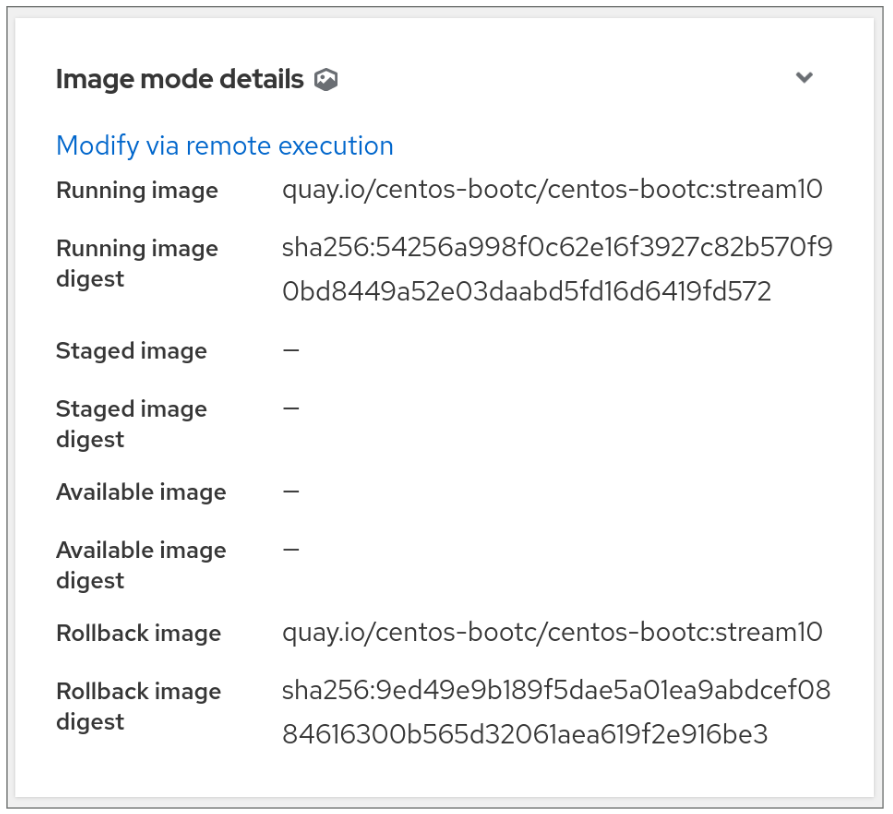
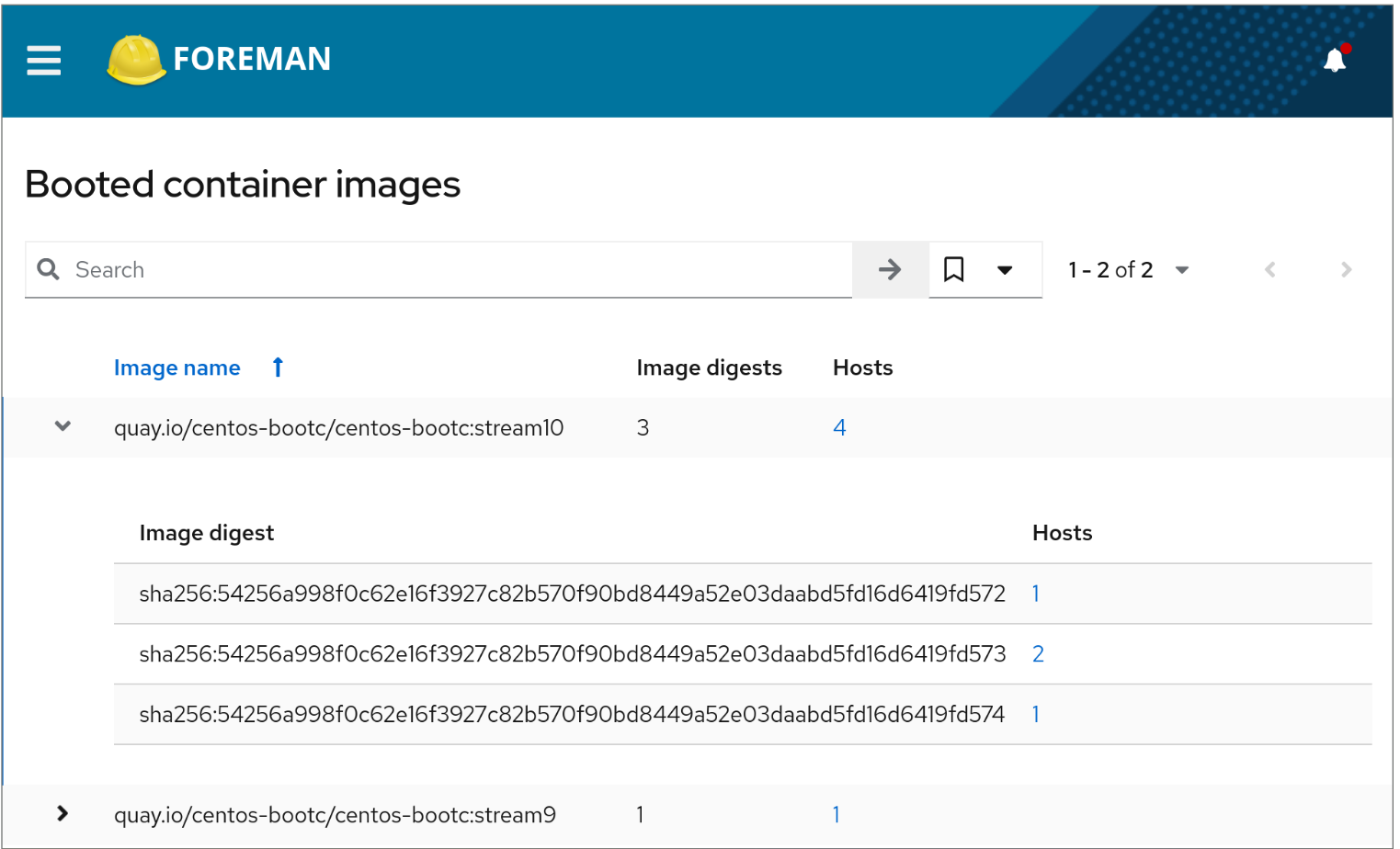
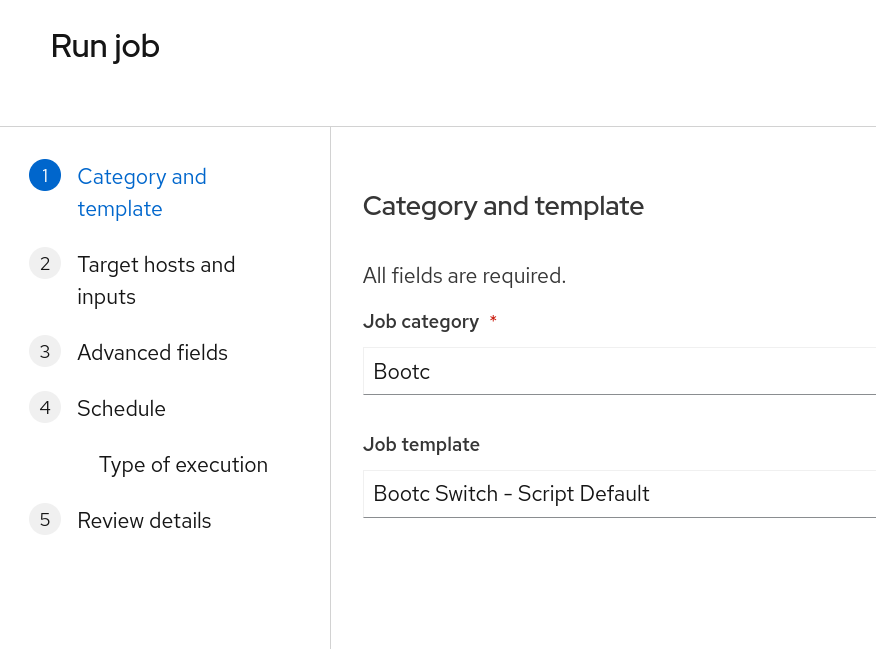
Those changes can be configured in Foreman in the Host details page if the host is recognized to be an “image mode host” - this is done by bootc-related facts uploaded by the subscription-manager during registration. The tile in the host details show which image is currently running, which image is staged for the next reboot, if there is a newer image available for updating and if you updated once, the previous image as rollback image. The actions are then configured using the remote execution. For the switch it is needed to define the new target image.
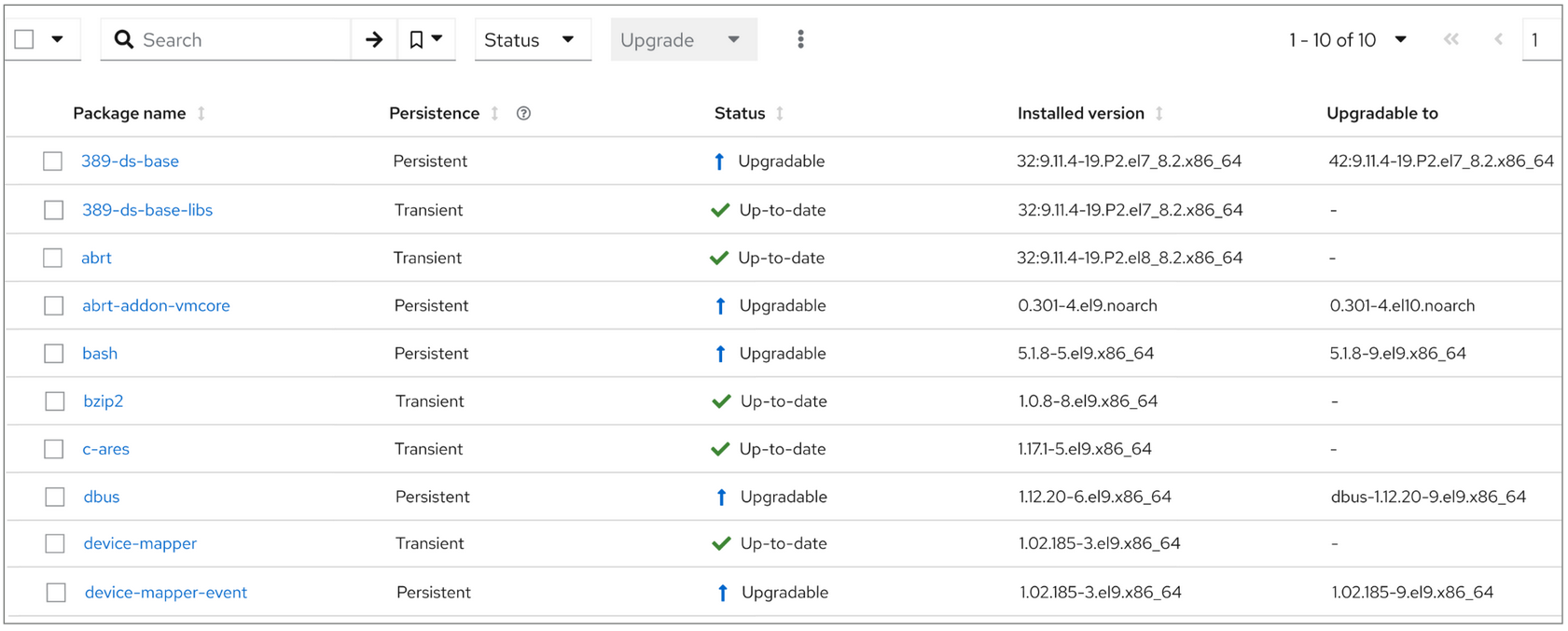
Besides the change of the image using bootc it is possible to install transient updates. This can be used for testing/debugging and for hotfixing. Switching to the host content shows the installed packages and available updates/errata. The packages part of the container image are persistent, while all changes performed of a running system are transient. This means after the next reboot those changes are gone and switched back to the persistent versions. The installation of packages or updates like errata work the same as for other machines (it will use a required option to perform those actions in the transient mode). With that you can install patches without requiring to reboot, but you have to take care that a new version of the image is built including those patches as will. This new image also needs to be performed as update to stage it for the next reboot.
With this functionality Foreman offers the possibility to manage bootc machines with the capabilities of the bootc design but also to patch systems in the transient mode to reduce the amount of reboots required.
Screenshots
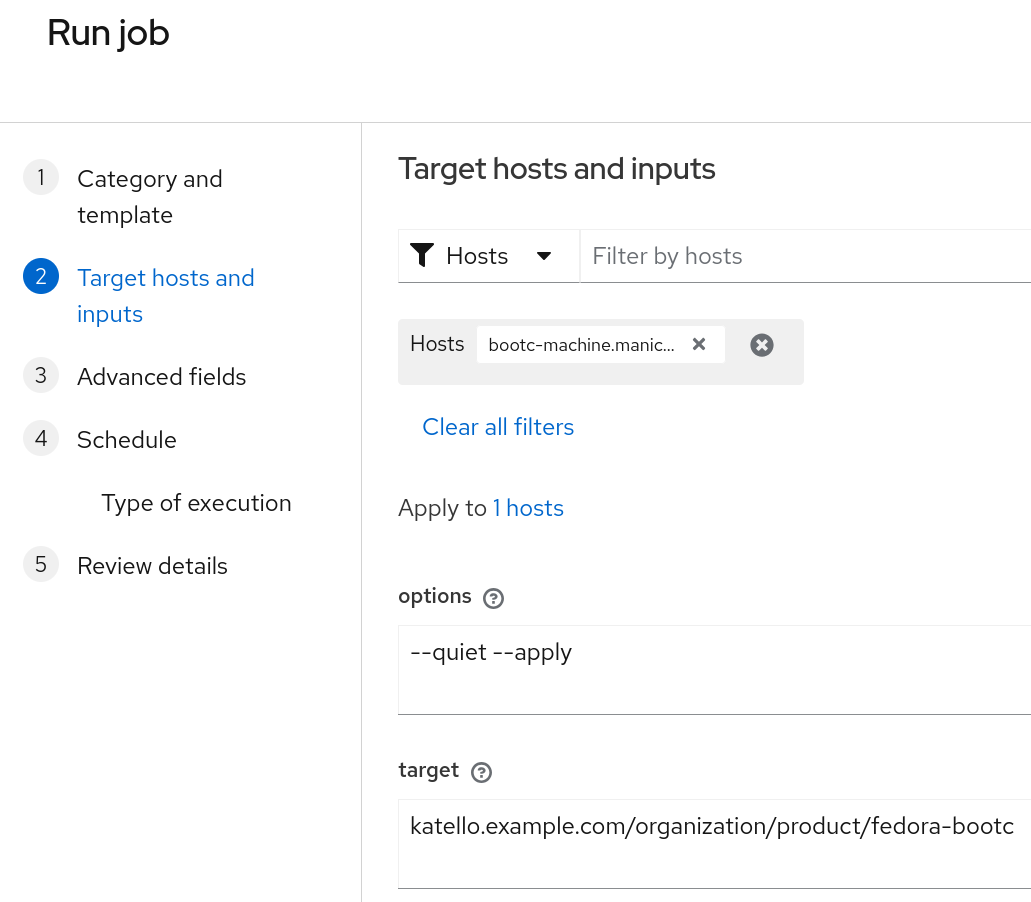
Thanks for reading! Please leave a comment about your bootc experience in Foreman, we are looking to continue improving the integration.
Written collaboratively by @iballou and @jtruestedt